If you have purchased a new smart phone and use multifactor authentication (MFA) for any account access one of the steps you will need to complete manually is to transfer your accounts from your old device to your new device to ensure continued access. Fortunately Microsoft Authenticator has a built in backup option making this process somewhat easy.
Note that MFA (sometimes also known as 2FA / two factor authentication) is designed to make it extremely hard to access an account unless you have the MFA code. Most accounts provide backup codes you can use if you’ve lost or damaged your phone however if you do not have these you will need to contact your system administrator for recovery options.
Turn on the Backup Option on your old phone
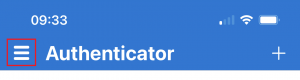
If you need to transfer your accounts to a new phone, you’ll have to turn on the backup option on your old one first. To do this, open Microsoft Authenticator. Tap the three vertical lines 'the hamburger' icon at the top left, and then tap 'Settings.'

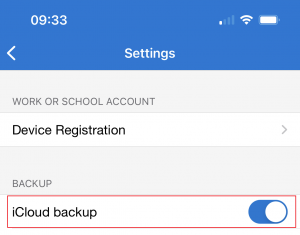
In the backup section, toggle-On 'Cloud Backup' on an Android phone, or 'iCloud Backup' on an iPhone. Your accounts will then be backed up to the Microsoft account you used when you first set up Microsoft Authenticator. iPhones also require that you have an iCloud account to use this feature.
Recover your accounts on your new phone
Next, you’ll need to install Microsoft Authenticator on your new phone. Download it from the Google Play Store for Android or the Apple App Store for iPhone. Please do not set up any accounts using Microsoft Authenticator at this point until after you’ve used the recovery option otherwise this will overwrite any of these accounts.
To use the Recovery tool, open the Microsoft Authenticator app on your new phone, and then tap on 'Begin Recovery.'

You will now be asked to sign in to the Microsoft account you used for the backup on your old phone (for example your iCloud account if using an iPhone). Your accounts will then automatically be added to Microsoft Authenticator on your new phone.
It’s also important to remove the accounts from your old phone if you plan to give this to another user. However, do not do this until you’ve tested and made sure you can access these accounts on your new phone.
If you do not plan on resetting your phone to factory defaults you can remove an account from your old phone by opening Microsoft Authenticator. Tap the account you want to remove, and then tap 'Remove Account.'
Further information can be found on the Microsoft Support article Back up and recover account credentials in the Authenticator app