Top tip: If your mailbox has recently been migrated to Office 365 – please first delete your existing email account before following the instructions below.
Set up Office 365 email on Apple devices – Outlook App
Open Outlook for iOS. The icon looks like this:

If you don't have it yet, download it from the Apple Store.
Note: Available for iOS devices using iOS 9.0 or higher.
Go to Settings > Add Account > Add Email Account.
Note: First time using Outlook for iOS? Just tap Get Started.

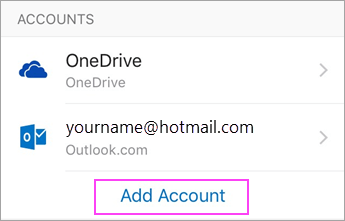
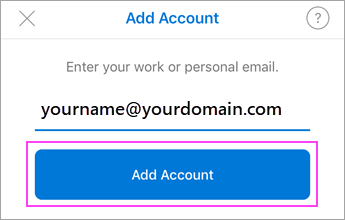
Type your full email address, then tap Add Account.
Note: If you're asked to select your email provider, you may have to set up your email as an IMAP account.
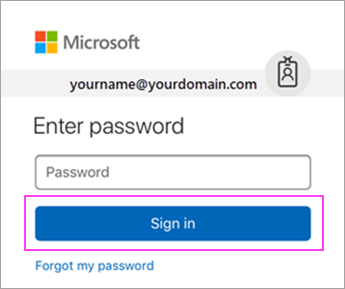
Enter your email account password and tap Sign In.
Note: Have 2-step verification? Get detailed steps on how to set up an Office 365 email account with 2-step verification.
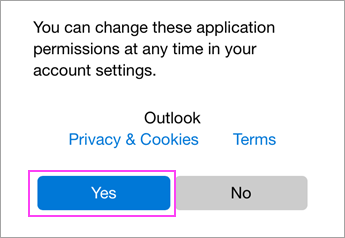
Tap Yes or Allow to give Outlook permission to sync calendar, contacts, etc.
You're now ready to use Outlook for iOS!